
Summaries and action items
How Speechy turns every transcript into a structured summary and a to-do list.
How summaries are generated
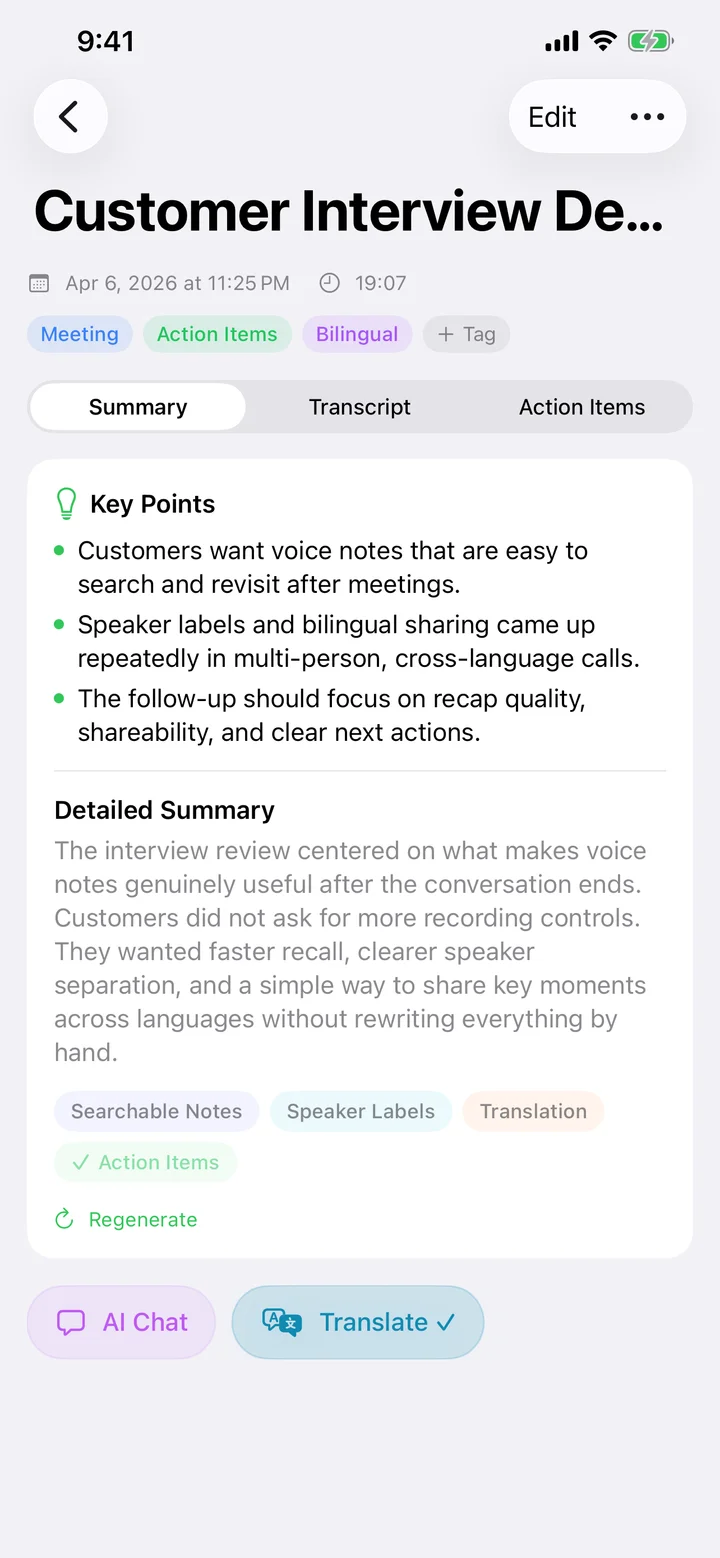
When Apple Intelligence is available, Speechy generates the summary on your iPhone. If it isn't, Speechy uses another on-device model or a cloud service you've set up. Every summary has the same three sections — Key Points, Detailed Summary, and Keywords.
Keywords become tags
Each keyword in the summary is tappable — one tap promotes it into a tag so you can filter other notes later. Tag colors are generated automatically for visual cues.
Action items
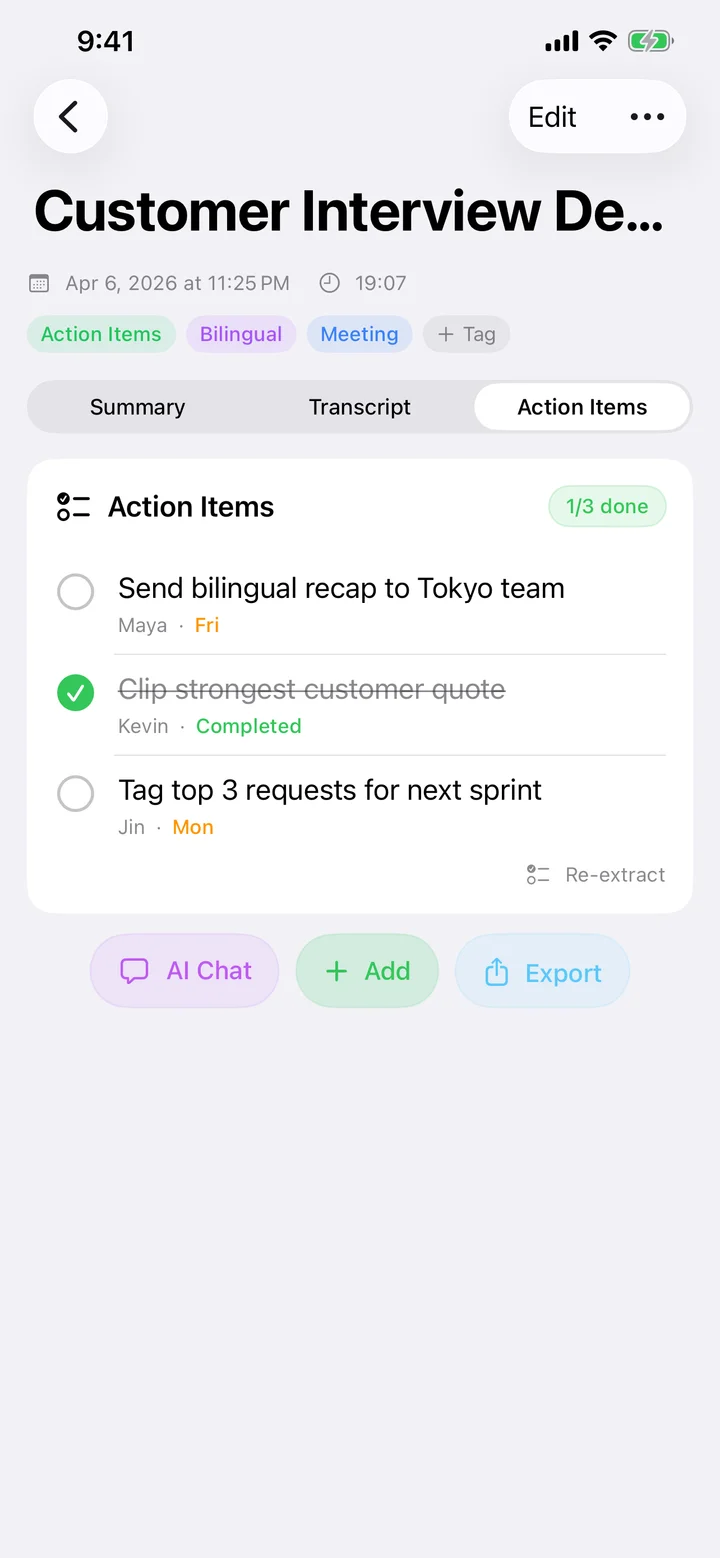
Speechy extracts to-dos with assignee and due date when they're mentioned. You can tick them off, edit, add manually, or re-extract after you tweak the transcript.
Regenerate and retry
If the summary missed something — perhaps because you edited the transcript afterwards — tap Regenerate on the Summary tab, or Re-extract on Action Items. Failures show a retry button with the underlying error.
Try Speechy Free
Available on iPhone, iPad, and Apple Watch