Getting Started
Welcome to Speechy
A quick tour of what Speechy does and the three-step workflow from recording to action items.
Updated 2026-04-183 min read
What Speechy Does
Speechy turns voice — meetings, interviews, classes, voice memos — into searchable notes, summaries, translations, and subtitles. Transcription happens on your iPhone using Apple's on-device speech recognition, so your audio stays private by default.
Three-Step Workflow
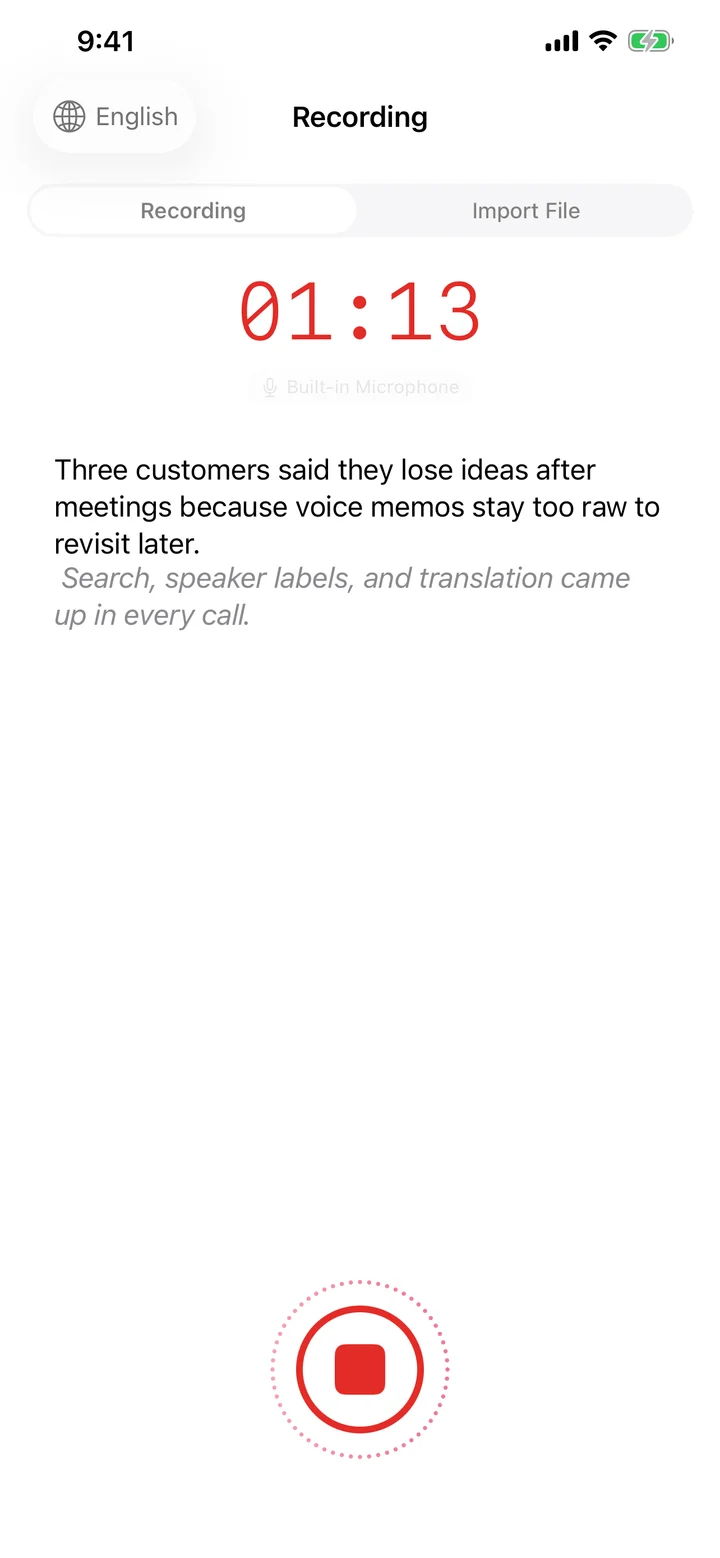
- Capture — record on iPhone, start from Apple Watch, or import an audio/video file.
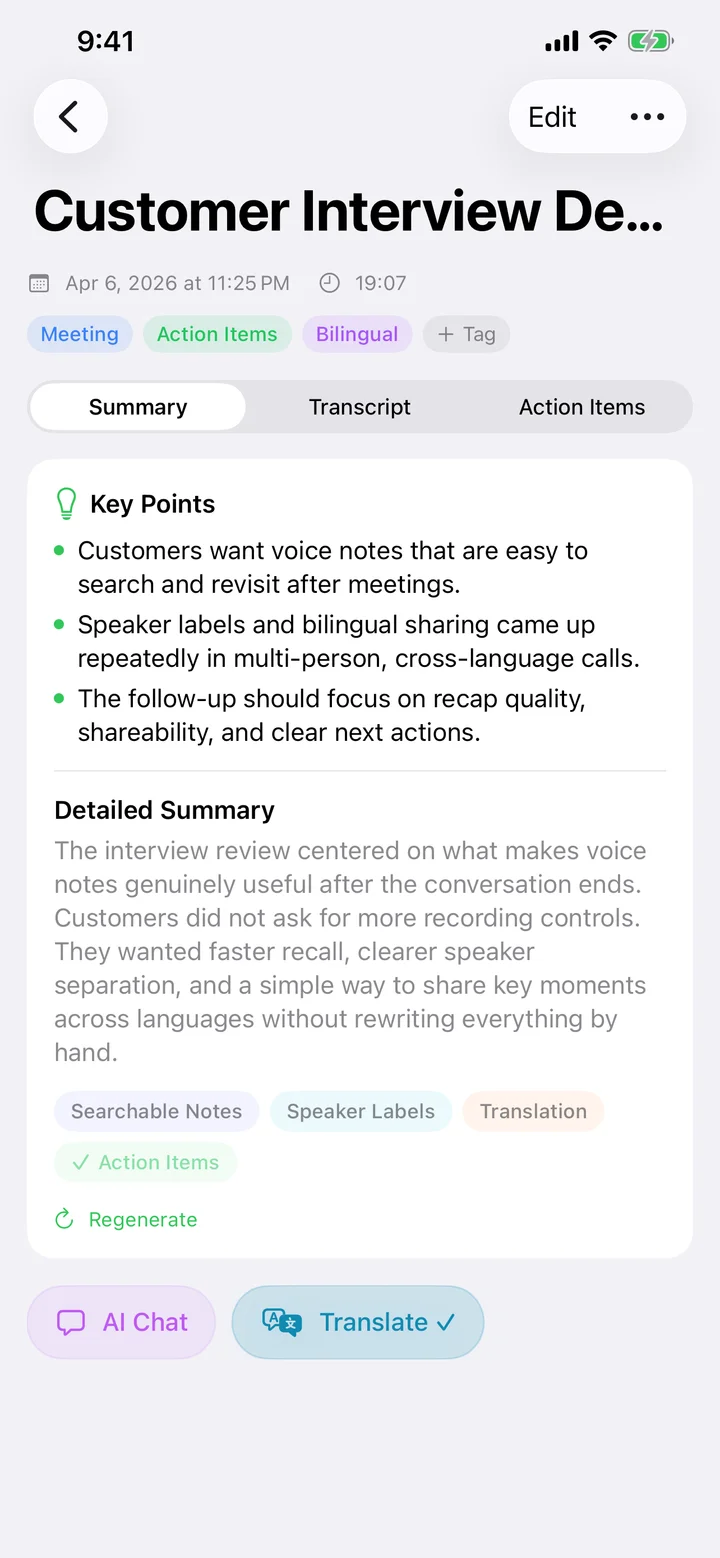
- Review — transcript, speaker labels, AI summary, action items, and bilingual translation.
- Act — search, share, export subtitles, or ask Speechy AI to continue working with the note.
Main Tabs
- Record — start a live recording or import a file.
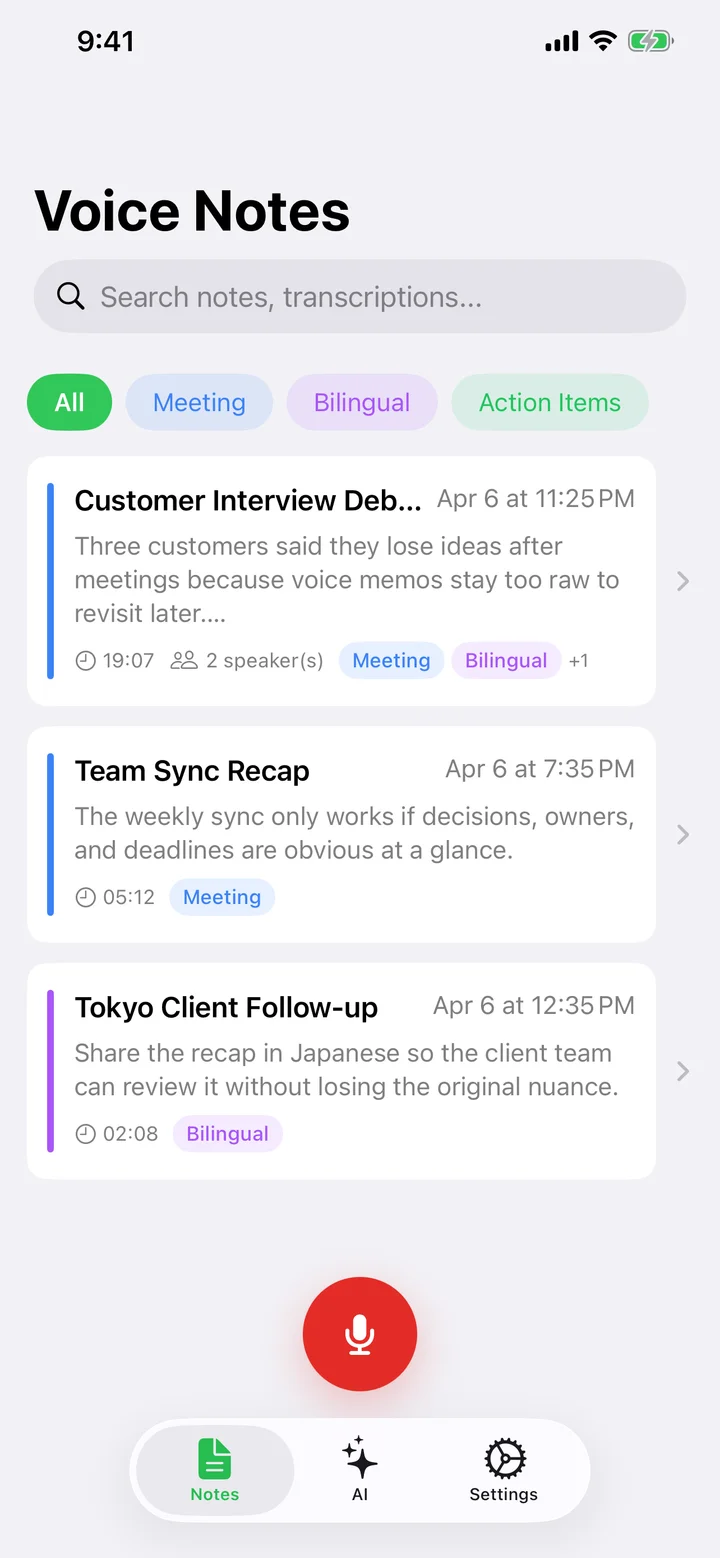
- Notes — every saved recording with search, tags, pinned items, and sort options.
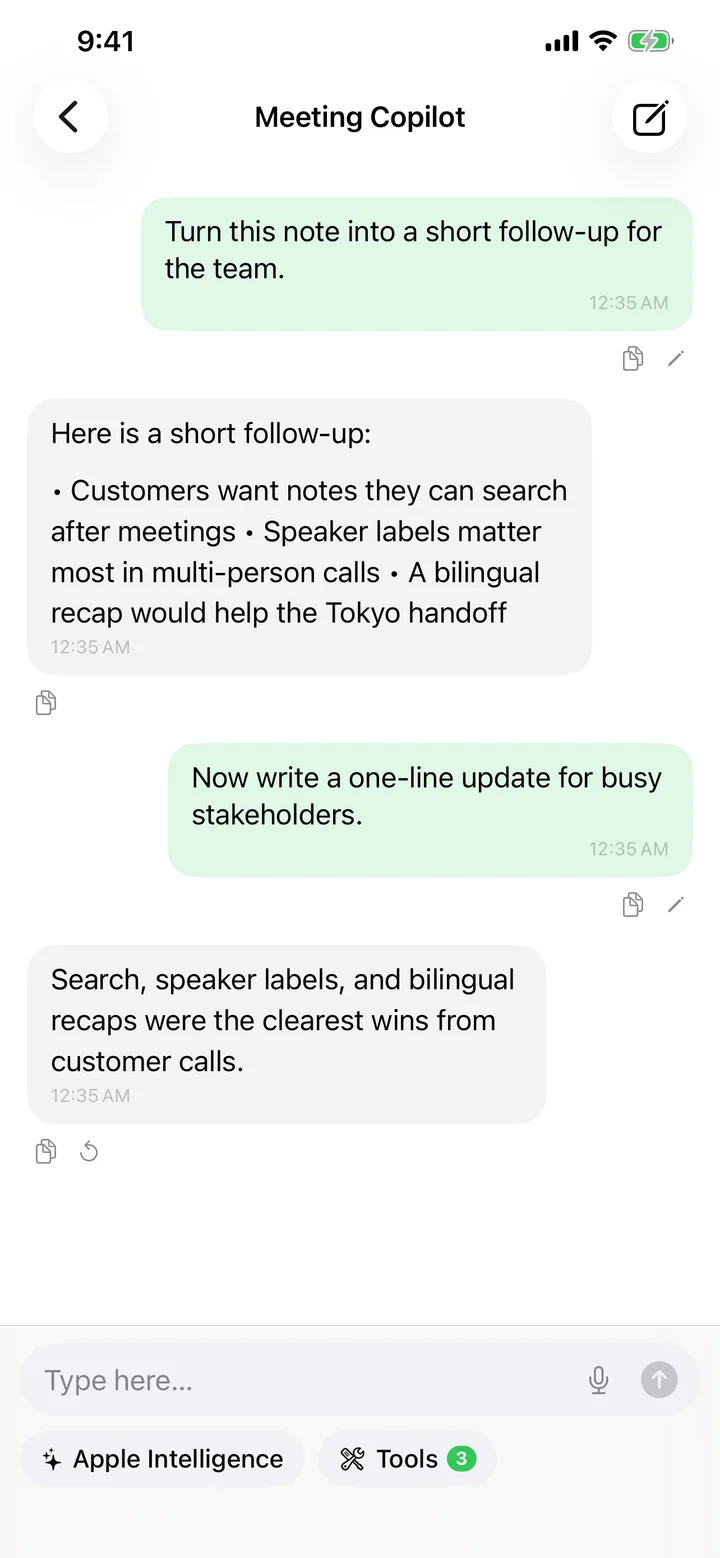
- Chat — ask AI questions across your notes.
- Settings — providers, models, display, translation, subscription, and support.
Next Steps
Try your first recording: open Record, grant microphone + speech recognition permissions, and tap the red button. When you stop, Speechy will transcribe, summarize, and extract action items automatically.
Try Speechy Free
Available on iPhone, iPad, and Apple Watch