Your first recording
Grant permissions, start, pause, and let Speechy transcribe in real time.
Before you start
Speechy needs Microphone and Speech Recognition permissions. iOS asks for them the first time you tap the record button — grant both so on-device transcription can run.
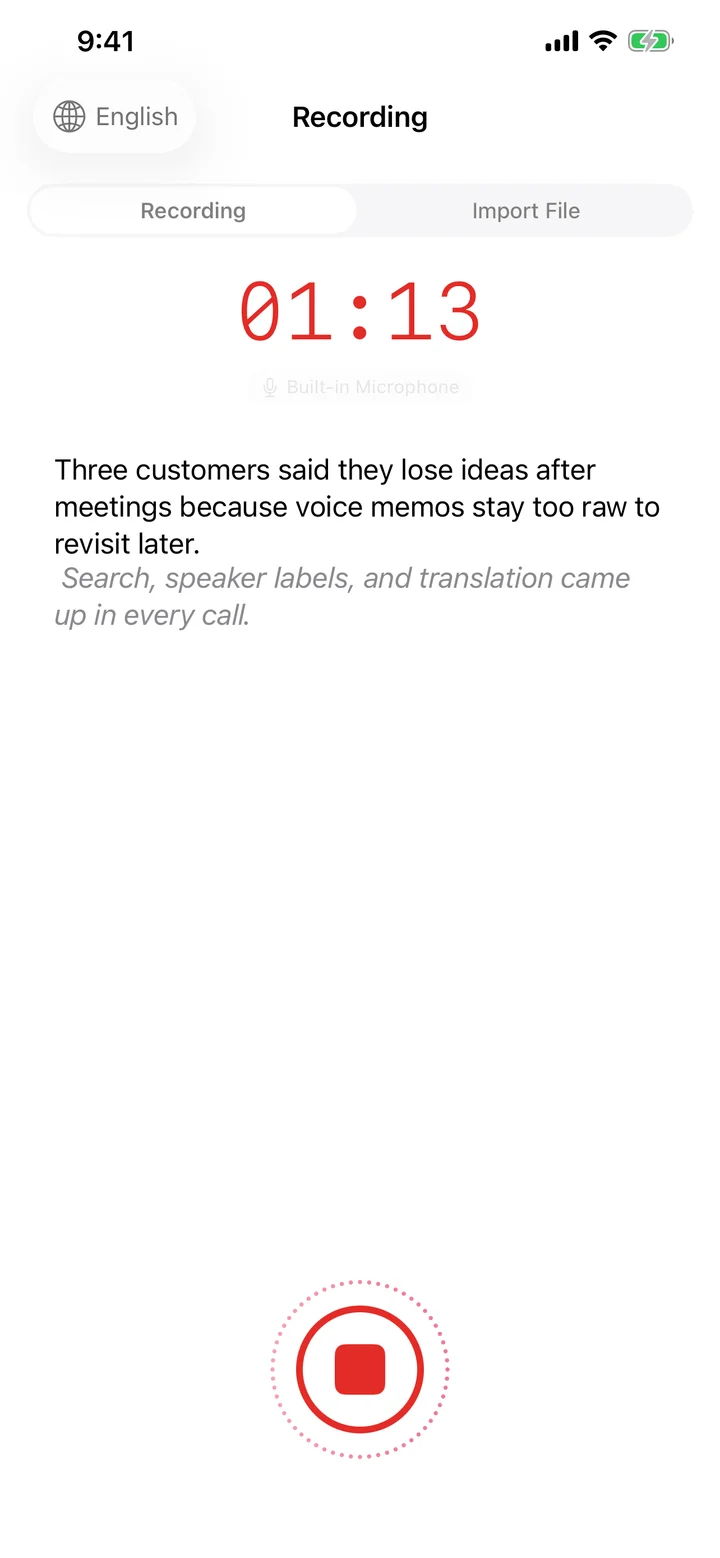
Start, pause, and resume
Tap the red button to start. While recording, the left secondary button toggles Pause and Resume — pausing keeps the session alive so you can take a short break without splitting the note. The center button stops and saves.
Interruptions and devices
Phone calls, alarms, or another app grabbing the mic will auto-pause the session and show a banner. When the interruption ends, Speechy either resumes automatically or waits for you, depending on iOS's hint. You can also switch between the built-in mic, AirPods, wired headsets, and USB interfaces from the input picker.
After you stop
The note is saved immediately. Speechy then runs the AI summary and action-item extraction in the background, so by the time you open the note the Summary and Action Items tabs are usually already filled in.
Try Speechy Free
Available on iPhone, iPad, and Apple Watch